Your raw files, developed by your own camera, in any recipe from the catalog. Not a Lightroom preset, not an emulation: the Studio sends your RAF to the camera over USB and the camera's processor renders the full-resolution JPEG, exactly as if you'd shot it with that recipe dialed in.
Connect your Fujifilm body over USB, the same cable that came in the box. The browser talks to it directly; nothing is installed.
Choose any RAF from your library and any recipe from the catalog, or one of your own favourites. Adjust settings if you want.
The camera's own processor renders the JPEG at full resolution and it lands back in your library, recipe attached, ready to post.
This is the same trick the comparison gallery is built on: every render is verified against the settings the camera itself wrote into the file.
Exposure, tones, white balance, grain: nudge a dial and the camera renders a fresh preview before you commit a version.
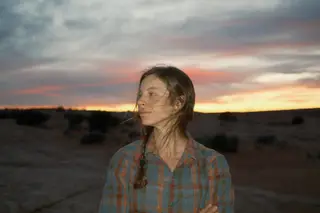
Re-enacted: in the Studio every preview is the camera's own render. The brightness change here only stands in for it.
Crop, matte borders and platform sizes, applied to the finished JPEG at export. The render itself stays untouched.
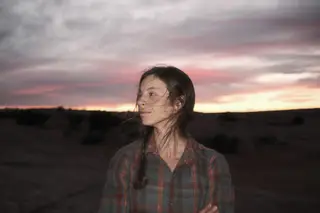
This one works exactly as shown: borders and crops go on at export time, over a real in-camera render.
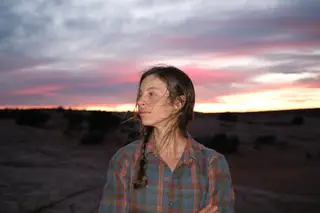
Reference photo by Cody Blue, from the comparison gallery.
No account, no upload, no waitlist. Plug your camera in, pass a one-time check in this browser, and develop. An account is for keeping things, not for getting in: a cloud library, saved versions, slot setups that follow you between browsers, and posting to the feed.
The Studio is in beta and some bodies aren't supported yet. Leave your email and you'll hear when yours lands.